
Start with one scene you would like to watch
To make an AI fruit video, give a fruit character a clear action, describe the shot in an AI video tool, generate a short clip, then watch and download it. A reference image can help define the character, but you can start with text alone.
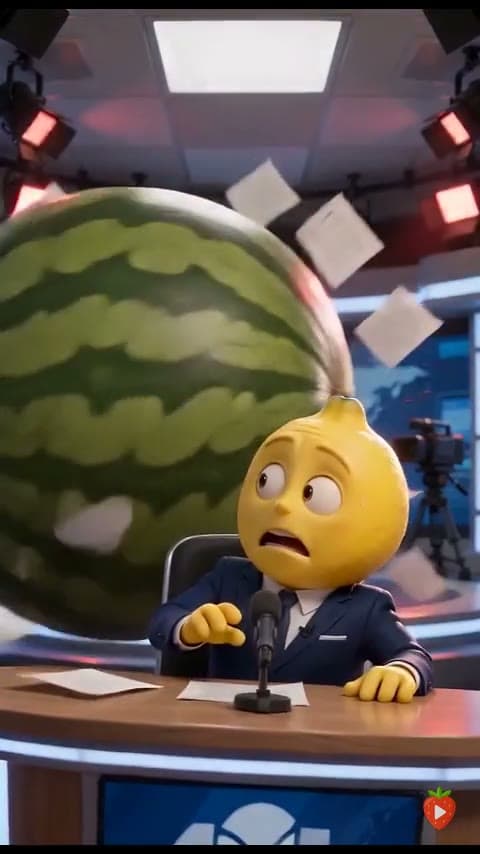
You do not need a whole episode to begin. A lemon trying to stay professional while a watermelon rolls through his newsroom is already a scene: we understand his job, see the problem, and wait for his reaction.
You can work out the story together with AI. Start with a rough idea, discuss a few directions with a writing assistant, and shape the characters and ending before asking for scene prompts. Follow the conversation approach below if you would like help finding the story.
- Borrow the short prompt below. Change the presenter, the setting, or the interruption if another idea makes you smile.
- Paste it into a video generator. Choose a short duration and the format you want to watch it in.
- Generate one take. Keep the part that works, revise one thing, and save a clip you enjoy.
You can follow along in AI Fruit Video’s Video workspace, or use another text-to-video tool you already have. The decisions in this guide travel with you.
The setup, the interruption, the reaction
Look for three things: whether the presenter stays recognizable, whether the interruption is readable, and whether his reaction makes the joke. A polished image alone does not tell the story.
See the gallery’s longer starting prompt
A serious lemon news anchor in a crisp navy suit tries to deliver breaking news while a giant watermelon rolls chaotically through the studio behind him. Papers swirl through the air, warning lights flash, and the desk trembles. The lemon keeps facing the camera with a strained professional smile and says, “We’re experiencing a minor situation in the studio, but everything remains under control.” One continuous medium shot, subtle camera shake, bright newsroom lighting, fast comedic energy.
This version includes dialogue and more background motion. For your first attempt, the shorter silent exercise below asks the model to coordinate fewer things.
1. Talk your story through with AI
You can develop the story by discussing it with AI. Open ChatGPT, Claude, or a writing assistant you already use. Bring a rough idea, a character, or just a mood. Let it ask questions, offer directions, and explore the story with you.
You can start with “I want a funny fruit story, but I have no plot.” Choose a suggestion that interests you, explain what you like, and ask for changes. The conversation can shape the characters, conflict, dialogue, and ending before you think about video settings.
Help me develop a fruit story through a conversation. I do not have a finished plot yet.

Start by asking me what kind of story I would enjoy: funny, romantic, dramatic, mysterious, or something else. Ask one question at a time about the characters, their relationships, and what might go wrong. If I am unsure, suggest three different directions and let me choose or combine them.

Discuss the idea with me before writing the full story. Help me explore what each character wants, a conflict, and an ending that follows from their choices. I may ask you to change the tone, reject a twist, or try another ending.

Once we agree on the direction, write a short story with a beginning, middle, and ending. Then help me break it into video scenes and write a separate prompt for each clip. Keep recurring characters recognizable and focus each clip on a clear visible action or reaction.

My starting thought, if any: [an idea, a mood, a character, or “please help me find one”].
Keep talking until the story feels like yours
For the newsroom idea, your follow-up messages could look like this:
- Find the premise: “I like the serious lemon presenter. What could interrupt his broadcast? Give me three ideas.”
- Choose and refine: “Keep the rolling watermelon. Make the lemon try to hide his embarrassment instead of panicking.”
- Work on the ending: “What if he straightens his tie and carries on? Build the story toward that reaction.”
Ask for another direction whenever an idea feels flat. You might say “make the conflict kinder,” “give the peach a better reason to stay,” or “try an ending where they do not forgive each other yet.” These choices give the story your taste, even when AI helps with the writing.
Agree on the story, then turn it into clips
When you like the story, ask the same assistant to organize it into scenes. Keep the full story in your conversation; take one scene’s video prompt at a time to the generator.
We have agreed on the story. Help me prepare it for video generation.

First summarize the story we chose and give each recurring character a short appearance card. Then split the story into scenes in order. For each scene, give me:
1. What changes in the story.
2. Who is visible and where they are.
3. One copyable video prompt describing the action, reaction, framing, and any essential sound or short dialogue.

Keep the story decisions we made together. Start with the first scene so I can review it before we prepare the rest.
A useful first scene has a character who wants something, an obstacle, and a visible reaction. For the lemon: finish the broadcast, notice the watermelon, recover his composure. If one scene contains too many events, ask AI to split it into smaller clips.
For ready-made directions, start on our Story page or borrow an idea from the fruit story prompt guide. You can do the whole discussion in the writing tool you prefer, then return with a scene you want to see.
2. Describe a character, or bring a reference
Text only is enough to try the idea. Give the character a fruit identity, silhouette, clothing, and expression: “an anthropomorphic lemon in a navy suit, trying to look composed.” You can skip a separate image-generation step.
For a recurring cast, make or reuse an image whose fruit shape and face you like. Keep that reference across scenes when your selected model supports it. Describe the action and camera in the video prompt rather than asking the image to explain the whole plot.
In our Video workspace, the input choices depend on the selected model:
- Text only: start from your written scene.
- References: guide appearance with supported reference images.
- First frame: start the shot from an image with the framing you want.
- First + last: supply both endpoint images when the model offers that control.
A reference and a first frame serve different jobs. If you need the lemon already sitting behind the desk at the opening, prepare that composition as a first frame. For text-only exploration, save that work until you know you like the idea.
You can prepare a face or character with AI Fruit with Face, draw your own, or use an image tool you prefer. Use images you have permission to use. Our image generation uses Paid Credits; it is an optional preparation route, not a requirement for this tutorial.
3. Write what the camera should see
A useful video prompt answers a few concrete questions: who is in the shot, where are they, what changes, how is it framed, and what should we hear? Add the details that matter to this scene. Leave out the character’s life history.
An anthropomorphic lemon in a navy suit sits behind a television news desk. A large watermelon rolls slowly across the studio behind him. The lemon glances at it, faces the camera again, and straightens his tie. One continuous medium shot, bright studio lighting, quiet studio ambience and a soft rolling sound. No dialogue or on-screen text.
This is an original simplified exercise, not the recorded input for the gallery clip above. It removes dialogue, swirling papers, and camera shake so you can judge the action and reaction first.
- Character: the lemon and navy suit establish a recognizable presenter.
- Action: the watermelon rolls through; the lemon notices and recovers his composure.
- Camera: one medium shot keeps both the job and the interruption understandable.
- Sound: quiet ambience and a rolling sound support the visual joke. Choose an audio-capable model if you want generated sound.
If you want speech, try a short line such as “Perfectly normal weather.” after the silent version works. Ask for a clear speaker and leave enough clip time for the words. Native audio can help, but it does not guarantee exact dialogue or mouth movement.
Google’s Veo guide explains these shot ingredients; Runway’s Gen-4 guide emphasizes simple, motion-focused descriptions for image-led clips. The controls differ, so adapt the prompt to the model you choose.
4. Choose a small first take, then generate
Open the Video workspace and paste the exercise into the Prompt field. Keep Text only selected for this first attempt. If you are starting with a ready-made fruit idea, Fruit Movie Maker also offers templates.
- Model: choose an available model that supports your input. If you want spoken lines or sound effects, check its audio capability. The silent visual story can work without it.
- Duration: try around five seconds for the short exercise, if offered. Give dialogue or slower action more time instead of squeezing a complete story into the shortest setting.
- Format: use 9:16 for a portrait short, or 16:9 when the scene needs more horizontal room. Keep the important action inside the frame.
- Resolution: begin with an available lower-cost option such as 480p or 720p while you are checking the scene. See the credit estimate before committing.
These are suggested practice settings, not the archived settings of the gallery clip. Availability and credit cost depend on the model. Sign in when asked, review the current estimate and balance, then Generate. Wait for the clip to finish before deciding what to change.
Generation uses credits, including retries. Current trial eligibility and balances are shown in the tool; you do not need to buy a large plan to decide whether you like a creative idea. If no trial generation is available to you, prepare the prompt first and choose whether the displayed cost is worth the experiment.
5. Watch the story, then fix one thing
Watch once without reading your prompt. Can you tell what happened? Then watch for the detail that mattered most to you: the eye movement, the pause, the handoff, or the short line.
- The interruption is missing: remove secondary action and keep the watermelon visible behind the desk.
- The lemon changes appearance: use a stronger appearance description or a supported character reference.
- The reaction is too fast: ask him to pause before straightening his tie, or allow a longer clip.
- The camera hides the joke: keep one steady medium shot with room for the background action.
- The speech is muddled: shorten the line, isolate the speaker, or make a silent take and finish audio separately.
Change the instruction that addresses the visible problem. Keeping the rest stable makes the next take easier to compare. A failed take can still tell you that the character design or the opening is worth keeping.
For example, replace “the studio erupts into chaos” with “one watermelon rolls slowly behind the desk.” That makes the task more specific; you still need to watch the result to see whether the timing works.
6. Download the clip, or build the next scene
When the clip works, use the result’s Download action and open the saved MP4. Check the full frame and listen to the audio before sharing it. Saving a first clip you like is a useful stopping point.
To build a story, write one prompt per scene, reuse your character notes or supported references, and review the clips in order. Make sure the next scene follows from the previous one rather than resetting the characters and their problem.
A three-clip version of the newsroom joke
- Setup: the lemon prepares for a calm forecast.
- Interruption: the watermelon rolls through the background.
- Payoff: the lemon straightens his tie and carries on.
Studio can help arrange your clips. The MP4 Video Merger can join compatible files in your browser. It does not trim or transcode them, so keep clip formats consistent; use an editor if they need conversion, exact cuts, captions, or music.
An editor you already know is a good choice. CapCut is one option for finishing. If exact subtitles matter, add them in an editor and proofread them rather than relying on the video model to render the text correctly.
Prefer to watch? Try Fotor’s character-to-video route
Fotor’s own talking-fruit tutorial offers a different path: design a character image, build a scene, then animate it. That can suit you if you want to settle the look before generating motion.
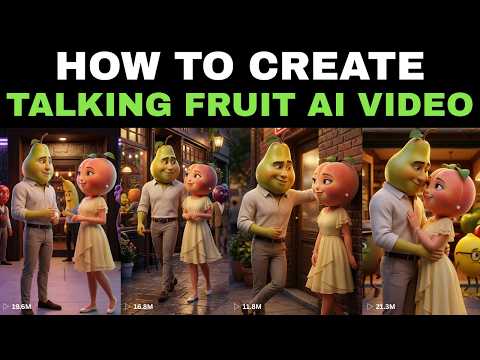
Its published chapters start at 00:19 for character design, 00:39 for scene creation, and 00:54 for animation. Follow the author’s current tool interface and access conditions.
Choose a route around the work you want to do. Fotor has an image-and-video workflow; Google Flow and Runway are other options to explore for image-led shots. Our tool lets you compare available models within one account. Use the one whose inputs, output, and cost fit your scene.
A few things to know before your first take
Can I make AI fruit videos for free?
Some tools offer trial credits or limited access. In AI Fruit Video, check your signed-in balance and the cost shown before generation; offers and model eligibility can vary. Gift Credits can fund eligible video generation, while our image tool requires Paid Credits. Paid-credit video output is watermark-free; Gift-funded output can include a watermark. “Free” does not mean unlimited retries.
Can I make a whole episode with one prompt?
This workflow generates one clip per task. A longer story needs separate scene prompts, consistent characters, review, and assembly. Start with one successful moment before planning an entire series.
How do I make the fruit talk?
Choose a model with native audio, name the speaker, and give it a short spoken line. Check both the words and the performance in the result. If you need a specific recorded voice or precise lip sync, choose a tool that explicitly supports that input; our current video workspace does not accept an uploaded voice track.
What should I make first?
Take something familiar from your day: an awkward meeting, a small kindness, or an attempt to look confident. Cast one fruit, choose one visible action, and borrow the framing from the lemon exercise. Your own detail will make it feel like yours.
Copy a scene from the fruit story prompt library, or open the Video workspace with an idea you are curious to see. A first attempt only needs one moment worth keeping.